Donations Welcome
I am currently saving toward a new version of Paint Shop Pro. If you wish to help me out, then please donate.
Larger versions of images can be seen by clicking on the image. Also, thank you for your kind and encouraging comments. I love reading the comments. If you use my any of freebies, I would be overjoyed with a comment containing a link to your item. I love seeing any of my freebies in use.
Friday, June 11, 2010
Stained Glass
This tutorial will show you how to make different types of stained glass and then use those patterns to create your own stained glass window. You will need a stained glass pattern. I made mine using stained glass clipart from Dover. There is also completely free stained glass patterns at find-stainedglasspatterns.com. Since this tutorial is for Art Nouveau theme of SNL 63, I am providing a link to free Art Nouveau stained glass patterns.
I live in an area where many of the turn of the century homes have stained glass windows. It is commonly called Art Glass in my area. Therefore, there is a lot of Art Nouveau stained glass in windows as I walk through the neighborhood. So, as part of this tutorial, I walked around to see what types of glass were commonly seen in Art Nouveau glass. This is not a comprehensive study, but as a result of my observations, I am going to show you how to make two different types of glass: hammered glass and streaky glass. There is not much streaky glass in my area and I tend to associate it with more modern glass creations.
Monotone Hammered Glass Pattern
1. Open up a new canvas. I'm making mine 3600 x 3600 so that the final glass could also be used as a background paper.
2. Fill the canvas with the color of your choice (Edit > Fill > Color).
3. Add 15% noise (Filter > Noise > Add Noise). If you have a much smaller image, reduce the noise percentage.
Amount = 15%
Distribution = Guassian
Monochromatic = Checked
4. Apply the Motion Blur filter (Filter > Blur > Motion Blur). If you have a much smaller image, reduce the distance.
Angle = -30
Distance = 30
5. Apply the Crystallize filter (Filter > Pixelate > Crystallize). If you have a much smaller image, reduce the cell size.
Cell Size = 25
6. Apply the glass distortion filter (Filter > Distort > Glass). If you have a much smaller image, reduce the distortion, smoothness and scaling.
Distortion = 10
Smoothness = 5
Texture = Frosted
Scaling = 200%
Duotone Hammered Glass Pattern
1. Open up a new canvas. I'm making mine 3600 x 3600 so that the final glass could also be used as a background paper.
2. Select one color as your foreground color and one color as your background color by left-clicking on the square that corresponds to the foreground/background then selecting a color with the color picker or choosing one from the color palette that pops up.
3. Apply the clouds filter (Filter > Render > Clouds).
4. Add 15% noise (Filter > Noise > Add Noise). If you have a much smaller image, reduce the noise percentage.
Amount = 15%
Distribution = Guassian
Monochromatic = Checked
4. Apply the Motion Blur filter (Filter > Blur > Motion Blur). If you have a much smaller image, reduce the distance.
Angle = -30
Distance = 30
5. Apply the Ocean Ripple filter (Filter > Distort > Ocean Ripple). If you have a much smaller image, reduce the ripple size and ripple magnitude.
Ripple Size = 15
Ripple Magnitude = 20
Streaky Glass
1. Open up a new canvas. I'm making mine 3600 x 3600 so that the final glass could also be used as a background paper.
2. Select one color as your foreground color and one color as your background color by left-clicking on the square that corresponds to the foreground/background then selecting a color with the color picker or choosing one from the color palette that pops up.
3. Fill the canvas with your foreground color (Edit > Fill > Foreground).
4. Apply the Fiber filter (Filter > Render > Fiber).
Variance = 20
Strength = 10
5. Apply the Wave filter (Filter > Distort > Wave).
Number of Generators = 5
Wavelength Min = 10
Wavelength Max = 327
Amplitude Min = 5
Amplitude Max = 188
Scale Horiz = 100
Scale Vert = 100
Type = Sine
Undefined Areas = Wrap Around
6. Optional. Apply the Twirl Filter if you want to add some spin to the wave pattern (Filter > Distort > Twirl)
Angle = 100
7. Apply the Motion Blur to soften up the streaking (Filter > Blur > Motion Blur).
Angle = -30
Distance = 30
Stained Glass Lead
1. Load your stained glass design. I loaded mine as a smart object since I traced the stained glass design in Illustrator. If you also wish to do this, use my tracing tutorial. My image is approximately 3200 x 3500 pixels.
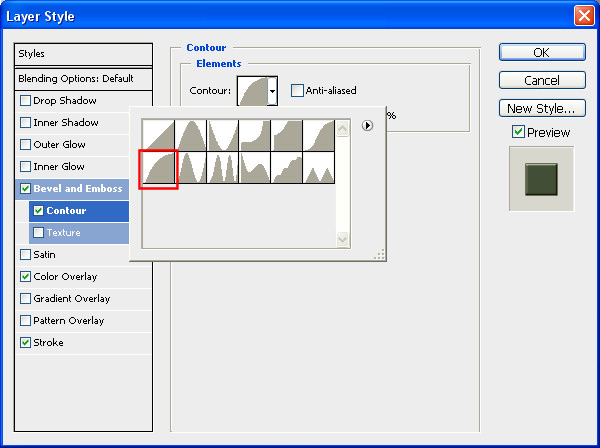
2. I used styles to create the look of the lead.
The Bevel and Emboss style uses the default settings.
Change the contour bevel to Half Round.
My stained glass pattern was black, so I changed the color with the color overlay.
I increased the size of the stroke to 5 pixels. You may wish to have a smaller stroke if your image is smaller than mine.
3. Use the magic wand selection tool to choose the areas for a particular glass pattern.
4. Create a new layer (Layer > New > Layer).
5. Create a new layer mask revealing the selection (Layer > Layer Mask > Reveal Selection).
6. If your glass pattern is not already open, open it in Photoshop. Drag it onto the glass pattern canvas and position it so that it covers the entire selection or canvas.
NOTE: I had to reduce the size of my glass pattern before applying the different types of stained glass because my computer began to run out of memory and I did not want it to crash before I finished the tutorial.
7. The glass pattern layer should be a new layer directly above the layer with the mask. Merge the glass pattern layer with the layer containing the mask (Layer > Merge Down). Choose to Preserve the layer mask when asked.
8. Select the layer with the stained glass design and repeat steps 3-7 for each different glass pattern.
Here is my final stained glass design. Click on it for a large view that shows the glass patterns in more detail.
Friday, May 28, 2010
Purple Pansy
The theme for SNL61 was Berry Blossoms. I ended up with pansies and no berries. This is the kit that I made for SNL61. It comes with:
- 2 papers
- 1 frame
- 3 bows
- 2 journalling tags
- 4 pansy flowers
- 3 leaves
- 1 glitter sprinkle
- 2 overlays
- 1 pansy bouquet cluster
There is actually 2 more elements included in this kit than I had in my original submission to SNL because I thought of the additional elements afterwards.
Wednesday, May 26, 2010
Mirrored Mitered Corners Frame
So, the original version of the script was not what the person was looking for. The mitered corners need to be mirrors of each other across the cut. Therefore, I've modified the original script to mirror the mitered corners. I have not had this script tested, but I am 99% confident that it should work in all versions of PSP from 9 on up. Please leave a comment if it doesn't.
Saturday, May 22, 2010
Purple Pansy Quick Page
For SNL61, I made a kit called Purple Pansy. Here is a quick page using elements from that kit. I hope that people can use it. I am currently re-working my SNL58 kit which has a vintage flavor. Hopefully, I'll have it done and available soon.
Thursday, May 20, 2010
Circularize Script
The previous circular frame script did not fulfill the request. I made this script while working on a script to circularize an existing paper. Though that script is still incomplete, I have made this circularize script which may work with papers, but I haven't tested it yet. If you do not wish to use the script, you can follow my tutorial on how to circularize an element.
This script will take any linear element (ribbon, lace, wordart, string of beads, etc) and turn it into a circular element. The script should check for orientation of the element. Though the script works best if your linear element has its widest part going from left to right. It has been tested and works in all versions of PSP 9 and up. Please leave a comment if you have a problem with this script.
Wednesday, May 19, 2010
Temporarily Making Fonts Available for Photoshop
One great reason to use Paint Shop Pro is that fonts do not need to be installed into Windows for you to use them in the program. Instead, you can simple open the font with Windows Font Viewer (then minimize the window) and Paint Shop Pro will recognize the existence of the font and make it available for use with the Type Tool. The same flexibility is not available for Photoshop. In addition, I have read that many people believe that you need to install a font in order for it to be used with the Type Tool in Photoshop. This is not true. This tutorial will show you how to make a font temporarily available for Photoshop and you do not need to install the font.
1. Before you start Photoshop, open the font with Windows Font Viewer.
2. Start Photoshop.
3. Once Photoshop has loaded, the font will be visible in the Type Tool dropdown list.
4. Here is one final tip, if you have forgotten to open the font before starting Photoshop, but you HAVE NOT USED THE TYPE TOOL, then you can still open the font with the Windows Font Viewer and make it show up in the Type Tool dropdown list. The first time you use the Type Tool, Photoshop loads all the fonts in the system and these will be the only fonts it recognizes until you close the program.
ADDENDUM: This tip will not work in Windows 7. Because of the new Font Management system in Windows 7, you need to open the font with a Font Managing Program (not Windows Font Viewer) to make it show up for PSP and PS.
1. Before you start Photoshop, open the font with Windows Font Viewer.
2. Start Photoshop.
3. Once Photoshop has loaded, the font will be visible in the Type Tool dropdown list.
4. Here is one final tip, if you have forgotten to open the font before starting Photoshop, but you HAVE NOT USED THE TYPE TOOL, then you can still open the font with the Windows Font Viewer and make it show up in the Type Tool dropdown list. The first time you use the Type Tool, Photoshop loads all the fonts in the system and these will be the only fonts it recognizes until you close the program.
ADDENDUM: This tip will not work in Windows 7. Because of the new Font Management system in Windows 7, you need to open the font with a Font Managing Program (not Windows Font Viewer) to make it show up for PSP and PS.
Tuesday, May 18, 2010
Circularize a Linear Element
This tutorial will show you how to take a linear element such as ribbon, lace, beads on a string, or text and wrap it into a circle without distorting the original item. I wrote this tutorial while working a script request. Therefore, this tutorial is for Paint Shop Pro.
1. Open up your linear element with the long axis going from left to right.
2. Resize your element by increasing the width and height times Î (pi = 3.14159). My element is 3600 pixels wide. So 3600 pixels * Î = 11304 pixels. My height is 300 pixels. 300 * Î = 565
Width = 11304
Height = 565
Resample = Bilinear
Maintain original print size = Unchecked
Lock aspect ratio = Checked
Resize all layers = Checked
3. Resize the element again. This time decrease only the width back to the original size. The new dimensions of my elements are now 3600 wide and 565 high.
Width = 3600
Height = 565
Resample = Bilinear
Maintain original print size = Unchecked
Lock aspect ratio = Unchecked
Resize all layers = Checked
4. Increase the canvas size so that the height matches the width of your element. Select the center placement for the element.
Width = 3600
Height = 3600
Placement = Center
5. Apply the polar coordinates distortion (Effects > Distortion Effects > Polar Coordinates). The circular element is now complete.
Rectangular to Polar = Checked
Edge mode = Transparent
Sunday, May 16, 2010
Rectangular Frame Script
This is the companion to the elliptical frame script. This script takes any size paper and turns it into a rectangular or square frame the same size as the original paper. I have not had this script tested, but it is a modification of the elliptical frame script so I am 99% confident that it should work in all versions of PSP from 9 and up. Please leave a comment if this script does not work for you.
Saturday, May 15, 2010
Embossed Paper
A member of my tutorial group asked whether or not the embossed paper tutorial for PSE could be used with Paint Shop Pro. PSP does not have an equivalent to the Texturizer effect. The closest would be the Texture effect, but this creates softer bevels when used for embossing. This tutorial covers a slightly different technique for taking an existing image and use it to emboss a paper.
1. Open up your paper. I'm using one of the papers from my unryu paper pack.
2. Open up your pattern. I'm using a Chinese stencil design from Dover. (Optional) If your pattern has transparent sections, then flatten the image.
3. Convert the pattern to greyscale.
4. Copy the pattern and paste it as a new layer over your paper (Ctrl + L).
5. Apply the emboss effect to the pattern layer (Effects > Texture Effects > Emboss).
6. Change the blend mode of the pattern layer to overlay.
7. Here is the embossed paper. The contrast of the pattern may be too slight.
The contrast can be improved by either increasing the contrast, for example by increasing the contrast by 50.
Or, the pattern layer can be duplicated several times. Here is the paper after the pattern layer has been duplicated 3 times.
Friday, May 14, 2010
Elliptical Frame Script
This script was a request. It takes any size paper and turns it into either a round or an oval frame. The frame will be the same size as the original paper. I am still working on the script that will turn any paper into a square or rectangular frame.
Subscribe to:
Posts (Atom)